
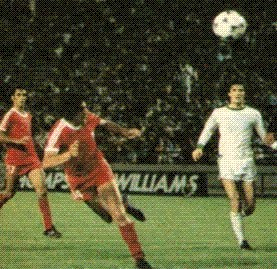
La Selección de Hungría llegó en 1980 a nuestro país para disputar una serie de amistosos contra equipos locales. En el primero de ellos, por el torneo de verano de ese año, enfrentó a Independiente, que presentaba los debuts extraoficiales de Olguín en la defensa y de Pepé Santoro en el banco de suplentes, como DT. El 15 de enero, en el José María Minilla de Mar del Plata, el Rojo formó con: Pogany; Pagnanini (Angeletti), Olguin, Zimmermann, Osvaldo Perez; Fren, Rubén Galván (Carlos Álvarez), Larrosa, Bochini; Alzamendi y Barberón (Magallanes). El encuentro terminó 1-1, con goles de Álvarez y Kuti, que no tiene nada que ver con el afeminado jugador del Real Madrid


Ese torneo de verano fue la mismísima copa de oro ganada por Independiente
Me gustaMe gusta
Pepé Santoro en el banco como DT. Desde hace cuanto lo tienen como interino???
Me gustaMe gusta
Esa copa la ganó el rojo y la repitió en el ’81.Si ese año debutaba Santoro como DT del rojo,como dt oficial y no como interino.Luego una serie de malos resultados,alla por mitad del torneo,lo llevaron a dejar el cargo para que despues lo reemplaze el Gitano JUárez.
Me gustaMe gusta
Pingback: » Boca 1 - Hungría 1En Una Baldosa
mira… todo bien con el post y la foto…. sin una queja… pero la embarraron con la foto de es P*to Guti. Que asco de tipo.
Me gustaMe gusta
Pingback: » River 0 - Hungría 1En Una Baldosa
En el plantel de Independiente de 1980 estaban Héctor Baley, Esteban Pogany, Gustavo Moriconi, Hugo Villaverde, Osvaldo Alejandro Pérez, Mario Estanislao Killer, Jorge Olguín, José Lencina, Rodolfo Zimmermann, Cristian Angeletti, Carlos Fren, Osvaldo Larrosa, Osvaldo Mazo, Ricardo Bochini, Hugo Saggioratto, Carlos Alberto Álvarez, Norberto Outes, Antonio Alzamendi, Pedro Magallanes, Alejandro Barberón.
Me gustaMe gusta
Yahoo email setup is an essential process for accessing Yahoo Mail and managing your communications effectively. Whether you’re setting up a new account or configuring Yahoo Mail on an existing device, understanding the setup steps ensures a smooth experience.
To begin, visit the Yahoo Mail sign-up page if you’re creating a new account. Enter your personal information, including your name, desired email address, and a strong password. You’ll also need to provide a mobile phone number for account security and recovery. After entering these details, Yahoo will send a verification code to your phone. Enter this code to complete the registration process and activate your account.
For setting up Yahoo Mail on your computer or mobile device, start by downloading the Yahoo Mail app from the App Store or Google Play Store if using a smartphone. Open the app and select “Sign in.” Enter your Yahoo email address and password to log in. Follow any additional prompts to configure settings such as notifications and preferences.
If you’re configuring Yahoo Mail on an email client like Outlook or Thunderbird, you’ll need to enter specific server settings. For incoming mail, use the IMAP server with the address
imap.mail.yahoo.comand port993. For outgoing mail, use the SMTP serversmtp.mail.yahoo.comand port465or587. Ensure that SSL is enabled for secure communication.In conclusion, Yahoo email setup involves creating a new account, configuring the Yahoo Mail app, or setting up email clients with the correct server settings. Following these steps ensures efficient access and management of your Yahoo Mail.
Me gustaMe gusta
Resolving E59 Canon Printer Error: A Quick Guide
The E59 Canon printer error can be frustrating, but understanding its causes and solutions can help you get back to printing quickly. This error typically indicates a problem with the printer’s communication or a malfunction in the print head. To resolve the <a href=»https://www.contact-phone-number.com/e59-canon-printer-error/»>E59 Canon printer error</a>, start by checking the printer’s connections, ensuring that all cables are securely plugged in. Next, restart the printer to reset any temporary glitches. If the problem persists, try removing and reinstalling the print head, as it may be misaligned or clogged. Additionally, ensure that you are using genuine Canon ink cartridges, as third-party cartridges can sometimes trigger errors. If these steps don’t resolve the issue, consider updating the printer’s firmware or consulting the Canon support website for more detailed troubleshooting. By following these guidelines, you can effectively address the E59 error and restore your Canon printer to proper functioning.
Me gustaMe gusta
The E59 Canon printer error can be frustrating, but understanding its causes and solutions can help you get back to printing quickly. This error typically indicates a problem with the printer’s communication or a malfunction in the print head. To resolve the <a href=»https://www.contact-phone-number.com/e59-canon-printer-error/»>E59 Canon printer error</a>, start by checking the printer’s connections, ensuring that all cables are securely plugged in. Next, restart the printer to reset any temporary glitches. If the problem persists, try removing and reinstalling the print head, as it may be misaligned or clogged. Additionally, ensure that you are using genuine Canon ink cartridges, as third-party cartridges can sometimes trigger errors. If these steps don’t resolve the issue, consider updating the printer’s firmware or consulting the Canon support website for more detailed troubleshooting. By following these guidelines, you can effectively address the E59 error and restore your Canon printer to proper functioning.
Me gustaMe gusta
The E59 error on your Canon printer can be frustrating, but understanding its causes and solutions can help you resolve it quickly. This error typically indicates a problem with the printer’s ink system, often related to the print head or cartridge issues. To troubleshoot the E59 Canon printer error, start by checking the ink cartridges to ensure they are properly installed and not empty. Additionally, try cleaning the print head, as clogs can lead to communication errors. If the problem persists, consider resetting the printer by turning it off and unplugging it for a few minutes before reconnecting. If none of these steps work, it may be necessary to consult with Canon support or refer to your printer’s manual for more detailed troubleshooting. By addressing the E59 error promptly, you can restore your printer’s functionality and get back to printing without further interruptions.
Me gustaMe gusta